Palo Alto Networks defines a recommended default action (such as block or alert) for threat signatures. You can use a threat ID to exclude a threat signature from enforcement or modify the action that is enforced for that threat signature. For example, you can modify the action for threat signatures that are triggering false positives on your network.
Configure threat exceptions for antivirus, vulnerability, spyware, and DNS signatures to change enforcement for a threat. However, before you begin, make sure the threats are being properly detected and enforced based on the default or best practice signature settings for an optimum security posture:
Get the latest Antivirus, Threats and Applications, and WildFire signature updates (for the firewall).
Set Up Antivirus, Anti-Spyware, and Vulnerability Protection and apply these security profiles to your security policy.
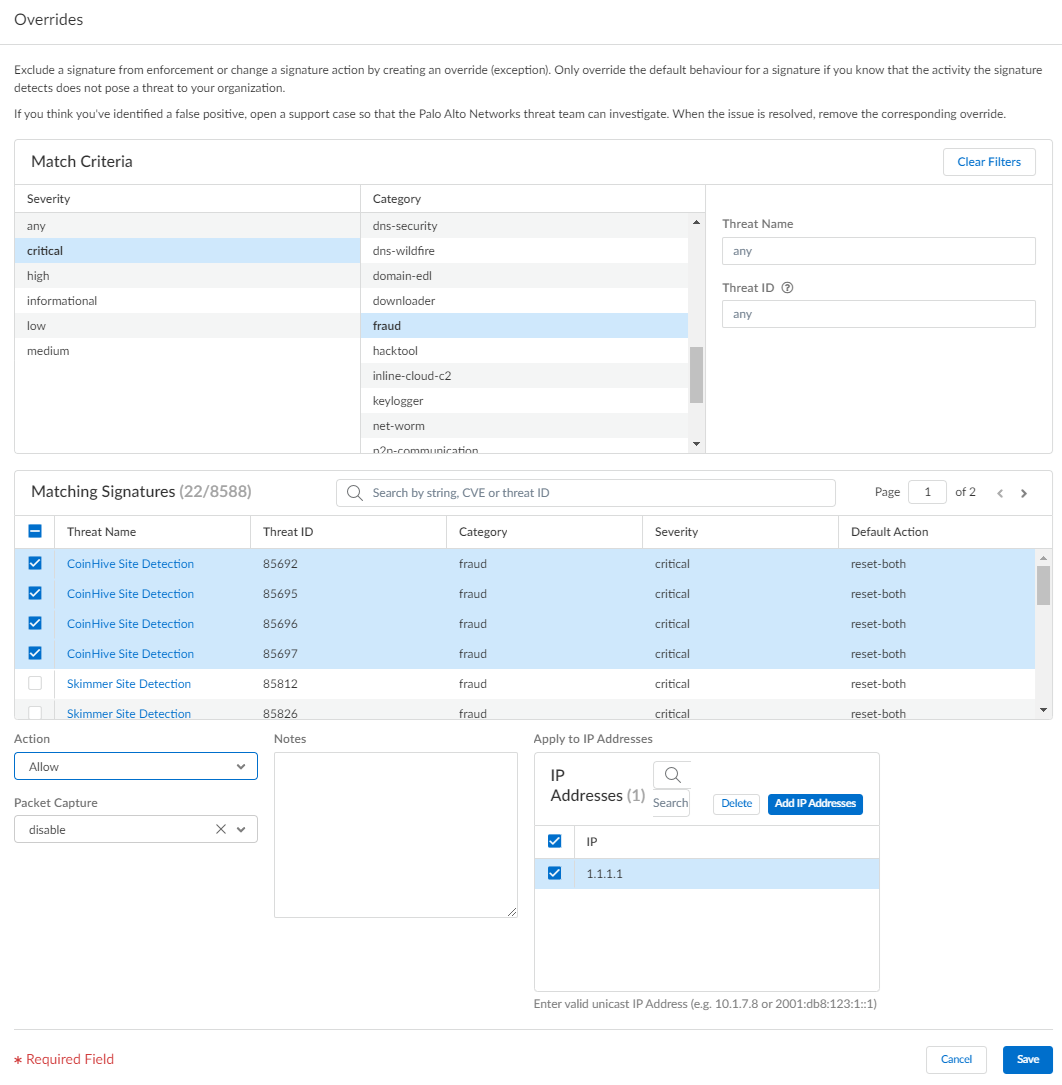
For SCM, adding or updating a Vulnerability profile override (exception) has to be done in the Overrides section. We are all used to editing the profile and making the change in the exceptions tab, but as we saw you can’t do that in SCM.
- To add an override, click Add Override
- Search for the Threat ID or Name
- Check the box to select the Threat
- Change the Action to Allow
- Click + to add the IP address
- Check the box to select which profile to want to add it to
- Save
To update an override, in the
Overrides section, click on the Threat ID
- Click on the name of the Profile
- Click + to add an IP address or – to delete one
- Save the update
- Save the override of the Threat ID
Strata Cloud Manager
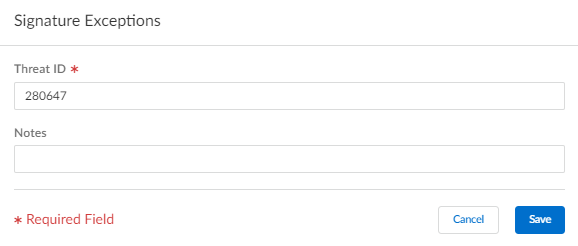
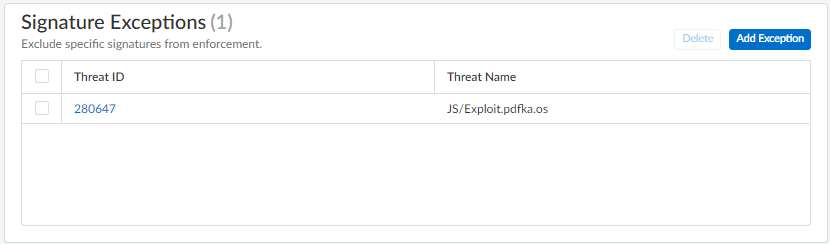
- Repeat to add additional exceptions or click Save after all of your threat exceptions have been added.
- Modify enforcement for vulnerability and spyware signatures (except DNS signatures; while they are a type of spyware signature, DNS signatures are handled through the DNS Security subscription in Prisma Access).
- Select or , depending upon the signature type.
- Add Profile or select an existing Anti-Spyware or Vulnerability Protection profile from which you want to modify the signature enforcement, and then select Add Override.
- Search for spyware or vulnerability signatures by providing the relevant Match Criteria. This automatically filters the available signatures and displays the results in the Matching Signatures section.
- Select the check box for the signature(s) whose enforcement you want to modify.
- Provide the updated Action, Packet Capture, and IP Addresses that you want the modified enforcement rules to apply to for the selected signatures.
- Save your updated signature enforcement configuration.
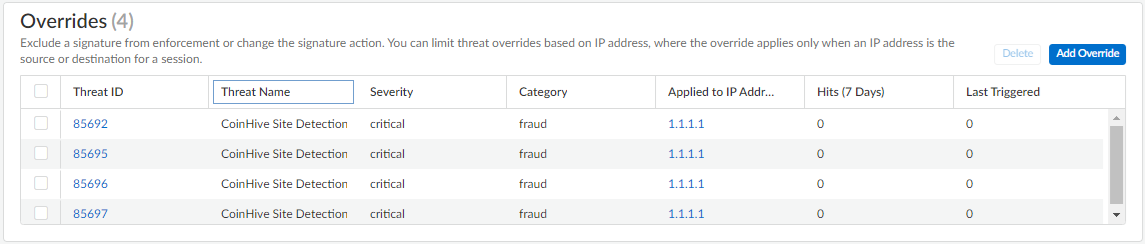
- You can view a complete list of Overrides including various statistics, as well as Delete entries that are no longer necessary.


No comments:
Post a Comment