Global Protect Components
Certificate Management
Connections
Authentication
Debugging


authentication user - allow list, group mapping?


Global Protect Components
Certificate Management
Connections
Authentication
Debugging
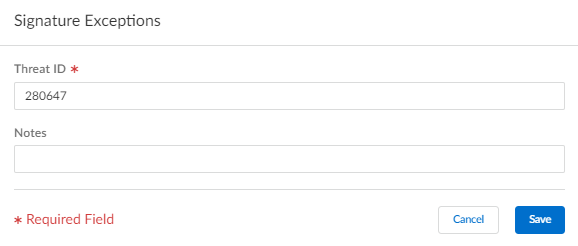
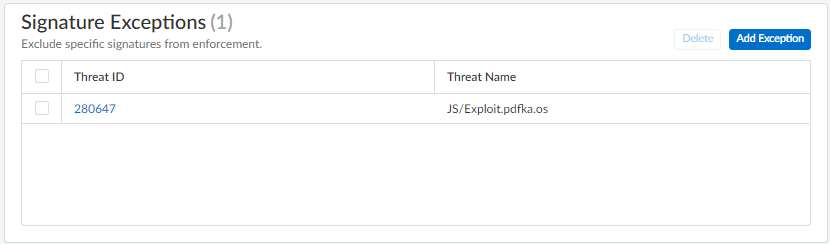
Palo Alto Networks defines a recommended default action (such as block or alert) for threat signatures. You can use a threat ID to exclude a threat signature from enforcement or modify the action that is enforced for that threat signature. For example, you can modify the action for threat signatures that are triggering false positives on your network.
Configure threat exceptions for antivirus, vulnerability, spyware, and DNS signatures to change enforcement for a threat. However, before you begin, make sure the threats are being properly detected and enforced based on the default or best practice signature settings for an optimum security posture:
Get the latest Antivirus, Threats and Applications, and WildFire signature updates (for the firewall).
Set Up Antivirus, Anti-Spyware, and Vulnerability Protection and apply these security profiles to your security policy.
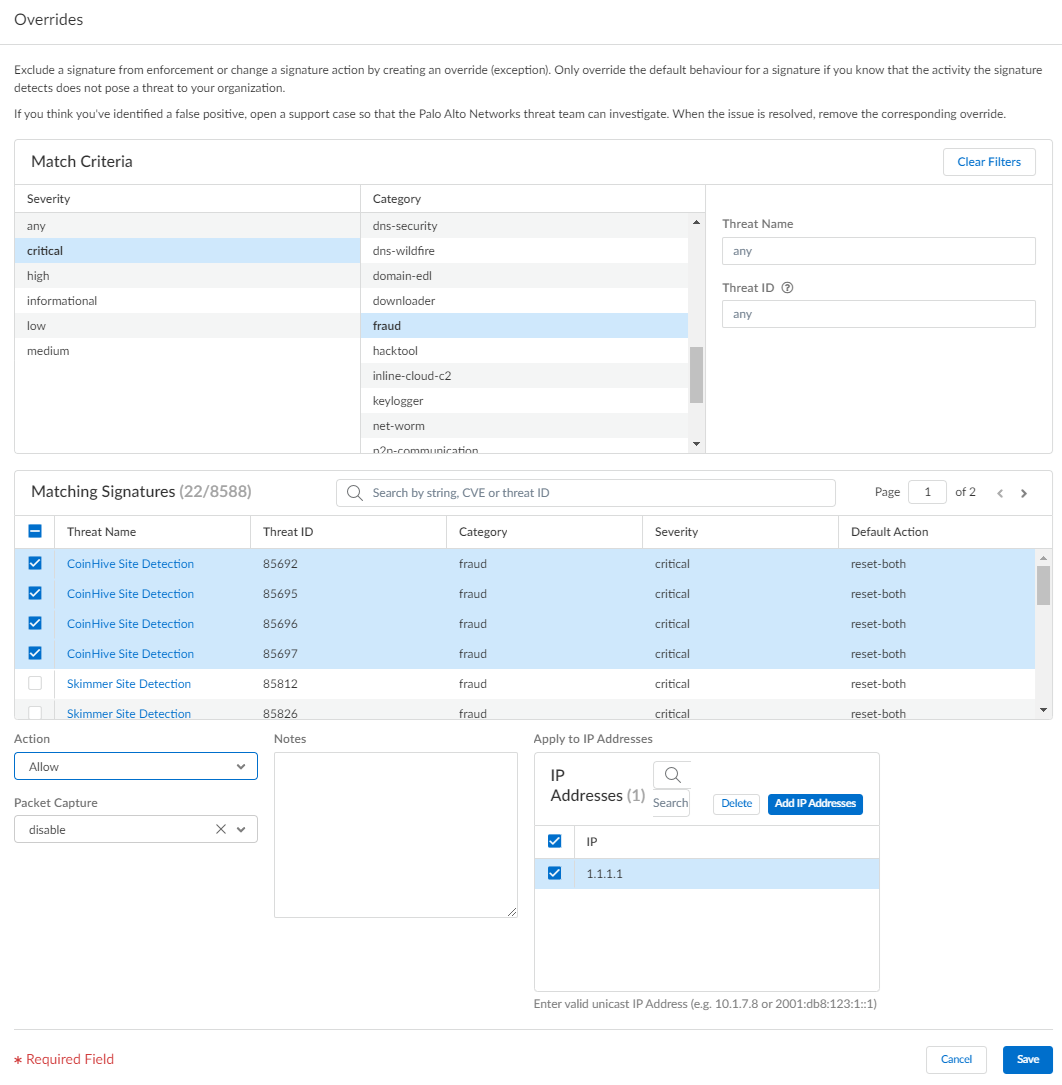
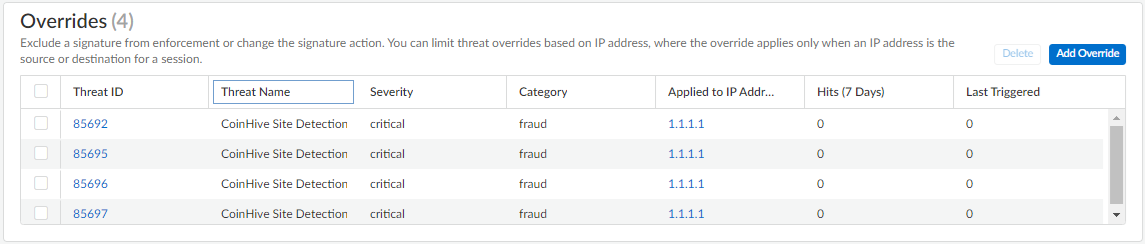
For SCM, adding or updating a Vulnerability profile override (exception) has to be done in the Overrides section. We are all used to editing the profile and making the change in the exceptions tab, but as we saw you can’t do that in SCM.
To update an override, in the
Overrides section, click on the Threat ID
Service Connections Setup
Verify Service Connection Status
You create IKE-Crypto-Profile, IPSec-Crypto-Profile
IKE Gateway (use the IKE-Crypto-Profile)
IPSec Tunnel (use IKE Gateway and IPSec-Crypto-Profile)
IKE Crypto Profile (IKE Phase 1)
Name: pa-lab-ike-crypto-profile
DH Group: Group20
Authentication: non-auth
Encryption: aes-256-gcm
Timers: 1 Hour
IPSec Crypto Profile (IKE Phase 2)
Name: pa-lab-IPSec-crypto-profile
ESP - Encapsulating Security Payload
AH - Authentication Header
Encryption: aes-256-gcm
Authentication: sha256
DH Group: Group
Life Time: 1 Hour
IKE Gateway
Name: pa-lab-service-connection-IKE-gateway
Version: IKEv2 only Mode
Address Type: IPv4
Interface: Ethernet1/2
Local IP Address 172.16.17.1/24
Peer IP address Type: IP
Peer IP address: 203.1.113.1
Pre-shared Key: PaloAlto!
Confirm Pre-shared Key: PaloAlto!
Local Identification: User FQDN (Email address) Site-a@prisma-access.lab
Advance Tab
Enable NAT Traversal
IKE Crypto Profile: pa-lab-ike-crypto-profile


Initial Configuration
Initial Access to the System
Configuration Management
Licensing and Software Updates
Account Administration
Account Administration using Radius
Admin Roles
Interface Configuration
Security Zones
Layer 2, Layer 3, Virtual Wire, and Tap
Sub-Interface
DHCP
Virutal Routers
Multi VR Setup and Use Case
Security and NAT Policies
Security Policy Configuration
Policy Administration
NAT (Source and Destination
App-ID
App-ID Overview
Application Groups and Filters
Content-ID Overview
AntiVirus
Anti-Spyware
Vulnerability
URL Filtering
External Dynamic List
File Blocking Wildfire
Security Profiles File Blocking
WildFire
Zone Protection and DOS Protection
Decryption
Certificate Management
SSL Handshake
Outbound SSL Decryption
Inbound SSL Decryption
VPN Virtual Private Network
Allow a secure communication over public Network.
VPN try to maintain CIA (Confidentiality, Integrity and Authentication)
Types of VPN
1. Site to Site VPN (IPSec s2s)
2. Remote Access VPN ( SSL VPN or Global Protect)
IPSec Site to Site VPN requires CIA
Confidentiality: Encryption
Integrity: HASH
Authentication: PSA/PKI
It will also provide Antireplay protection
Encryption: IT will convert Plain text in to cipher text by using the key.
Decryption: It will convert Cipher Text into the plan text by using the key
Symmetric Encryption
1. DES (56 bit) 3DES (168 bit) ASE (128, 192. 256 bit) RC4 (128bit_
2. Same key used for encryption and decryption
3. Block Cipher ( DES, 3DES, block the data ex 64 bit block, ASE - Same data block whatever size of Key)
4. Stream Cipher: (RC4: Bit by Bit Encryption)
Asymmetric Encryption
1. RSA (SSH), DH
2. Both sites have 2 keys Private and Public key. Share public key with each other
When ever data is encrypted with private key, you can use public key to decrypt it and visa versa
HQ Head Office in Delhi
Branch Office BLR Bangalore


Global Protect Components Certificate Management Connections Authentication Debugging https://www.youtube.com/watch?v=0Z48WHvyW0Q authentica...